![IA TBE logo transparent back.png]](https://independentaudit-7418567.hs-sites.com/hs-fs/hubfs/IA%20TBE%20logo%20transparent%20back.png?height=44&name=IA%20TBE%20logo%20transparent%20back.png)
1. Log In To Your Account
When the questionnaires go ‘live’ you will receive an email containing a link to the portal from thinkingboardsupport@ipitsi.com. You will be ask to setup a password, before being able to access your administrator account.
Once setup you will be able to monitor you’re the progress of your review and when the time comes, view reports.
2. Managing Your Board Evaluation
During the evaluation period, you can view the evaluation's progress, send reminder emails and also re-send the initial invitation emails.
Once logged into Thinking Board Evaluator, click on STATUS in the left hand menu bar. You will see a screen showing a summary of the questionnaires that are currently live.
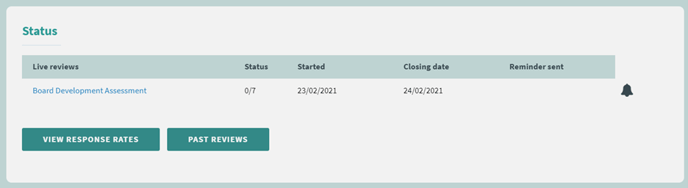
Use the “Bell” icon on the right hand side of the list to automatically generate a reminder email to every Participant who has not yet submitted their responses. Those who have already submitted their responses will not receive an email.
Note on the "Closing date"
The closing date is the deadline for the review. We will set this up according to your instruction in the setup form. This date will be given in the invitation and reminder emails, however the review will not automatically close on this date.
You can continue to receive responses until you manually close the review by clicking STOP REVIEW.
If you want to change your Closing date contact us at support@thinkingboardevaluator.com.
If you want additional detail on your evaluation's progress you can click on the name of the questionnaire to see each individual’s completion status.
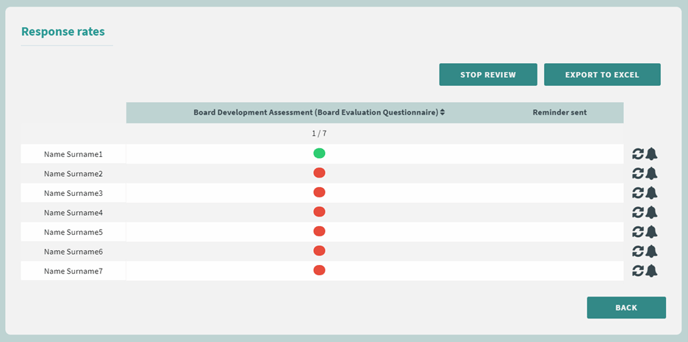
From here you can send reminder emails to one Participant at a time using the bell icons, or you can use the arrows icon to re-send the original invitation email.
3. Closing Your Evaluation
Once all or your board members have completed the Thinking Board Evaluator questionnaire, you can close the evaluation by:
- returning to the STATUS page using the left hand navigation
- then clicking the name of the questionnaire
- then click STOP REVIEW at the top of the page.
Stopping the review will prevent Participants from accessing the questionnaire. So those who have completed will no longer be able to amend their responses, and anyone who has not completed the questionnaire will no longer be able to.